Asset configuration: plan features, depth and recurrence
Last updated: July 7, 2026
This guide explains how testing configuration works for each asset on the Strike platform: what defines depth and recurrence, how and when they are assigned, where they are managed, and how to understand the capacity contracted in your plan.
💡 If you are looking for a conceptual explanation of each depth and recurrence level, see the article Recurrencia y profundidad de las pruebas.
What is it about?
The Strike platform allows you to define exactly how and how often each asset in your organization is tested. Instead of applying a uniform configuration, you can assign different depth and recurrence levels based on the business criticality of each asset.
This is done through two parameters that are configured when activating testing on an asset:
Testing depth — how deep the analysis is.
Testing frequency — how often it runs.
⚠ These parameters are defined when activating testing on the asset and cannot be modified afterwards. Plan the configuration carefully before confirming.
Depth levels
The Testing depth defines how deep the security analysis applied to an asset is. The choice depends on how critical the asset is to your business and how much risk exposure it has.
Deep
Complete testing with extended reconnaissance and advanced attack simulation. Covers complex business logic flaws, multi-step attack chains, and low-severity findings that combined generate high-impact scenarios.
Ideal for: production APIs, authentication systems, and any asset where a breach would have critical consequences.
Medium
Testing focused on the most exposed attack surface. Covers the most well-known vulnerability classes, common attack patterns, and critical entry points, including authentication flows.
Ideal for: internal tools, staging environments, and assets with moderate risk exposure that require regular coverage.
Superficial
Automated detection of known vulnerabilities, misconfigurations, and common CVEs. Fast and scalable, with no manual testing logic.
Ideal for: low-criticality assets, broad inventory coverage, and security baseline monitoring.
Testing frequency
The Testing frequency defines how often the platform runs testing on an asset. There are four options available depending on the level of temporal coverage needed:
Frequency | When it runs | When to use it |
|---|---|---|
Monthly | Every month | Continuous testing. Maximum temporal coverage. |
Quarterly | Every 3 months | Regular testing. Balance between frequency and cost. |
Semi-annual | Every 6 months | Periodic testing. For assets with lower exposure. |
Annual | Once a year | Baseline testing. Minimum frequency. |
How and when to assign a configuration
The depth and frequency configuration is assigned when activating the asset, not when creating it. The flow has two steps: first you create the asset, and then you activate it with Start testing, where you choose the configuration. Once confirmed, it cannot be modified.
Before you start
The ideal moment to define the configuration is before creating the asset. Consider these criteria:
How critical is this asset to the business? (exposure, data it handles, impact of a breach)
How often does it change or update? Assets that change frequently need higher frequency.
Do you have available capacity? Check it in Plan & Usage before creating.
Does the contract cover this configuration level? Confirm with your Customer Success Manager if you have any doubts.
Step 1: Create the asset
Complete the basic asset data (name, URL, type, environment).
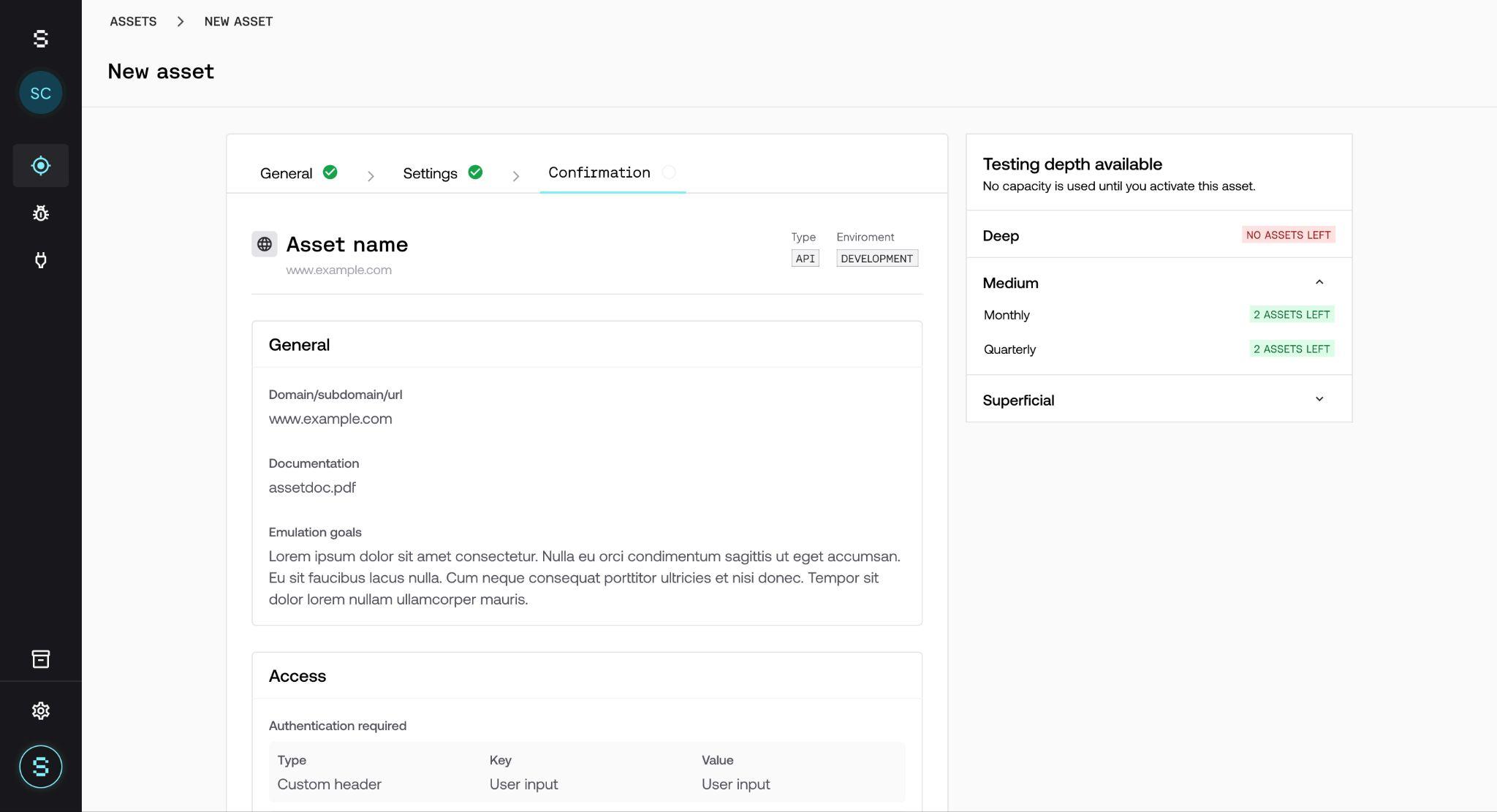
While completing the form, the side panel Testing depth available shows the available capacity by depth and frequency. Each combination shows how many assets you can activate at that level (for example, 2 ASSETS LEFT) or if it is already at the maximum (NO ASSETS LEFT).
Save the asset. Creating the asset does not consume capacity — capacity is reserved only when you activate it.
💡 The side panel includes the note "No capacity is used until you activate this asset", confirming that simply creating an asset does not impact your plan.
Step 2: Activate the asset — Start testing
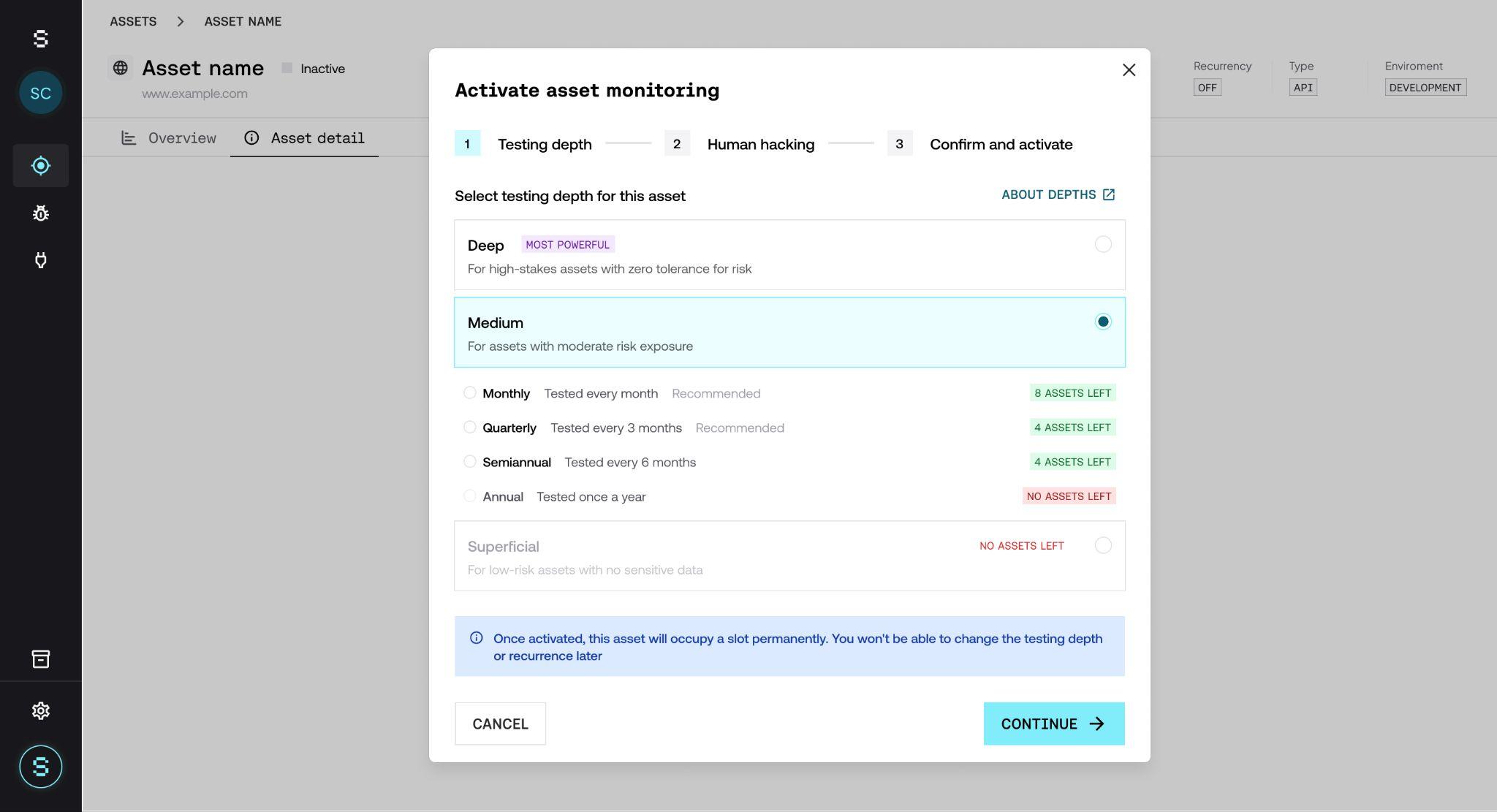
From the created asset, click the Start testing button.
Select the Testing depth and Testing frequency based on the asset's criticality and what you have contracted.
If you have the Strikers on top add-on available, you can activate it in this step.
Verify that Strike's IPs are whitelisted in your infrastructure — the platform shows them in this step.
Confirm. The asset becomes active, capacity is reserved in your plan, and the configuration is assigned.
⚠ The Testing depth and Testing frequency configuration is chosen when activating the asset, not when creating it. Once confirmed, it cannot be modified.
Configuration tab — View and manage the asset configuration
Once the asset is active, you can check and manage its configuration from the Configuration tab inside the asset detail (along with Overview, Details, and Access). This is the only view where you can see what is configured and make operational adjustments.
💡 In the asset detail header you will also see a Testing depth field with a badge that combines the configured depth and frequency (for example, DEEP - QUARTERLY).
What the tab shows
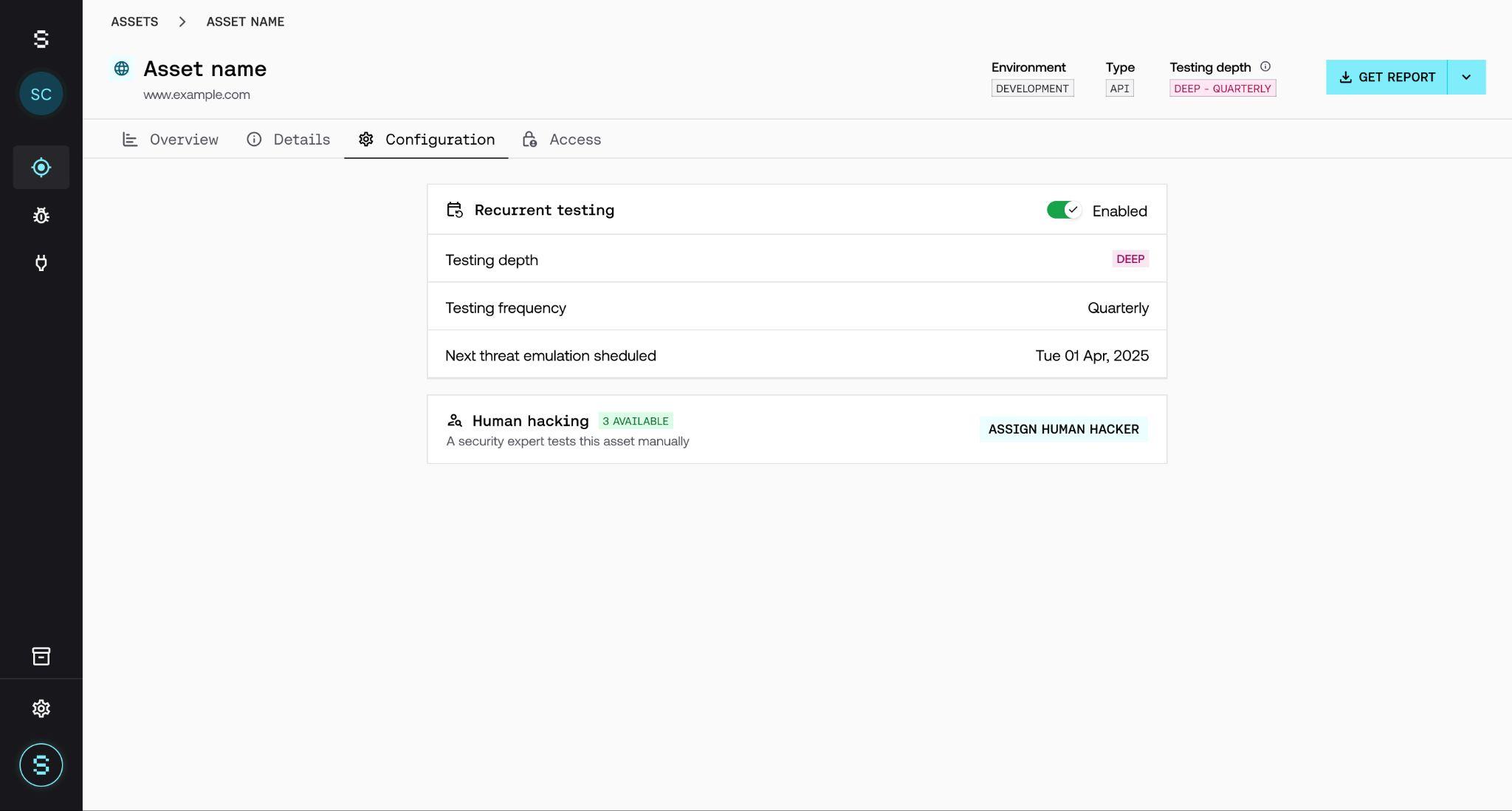
The main section is Recurrent testing, which groups all the active configuration:
Enabled / Disabled toggle — indicates whether periodic testing is active or paused.
Testing depth — the depth level assigned to the asset (Deep, Medium, or Superficial).
Testing frequency — the configured frequency (Monthly, Quarterly, Semi-annual, or Annual).
Next threat emulation scheduled — the date of the next scheduled execution.
Pause and resume testing
From this tab you can pause recurrent testing by switching the toggle in the Recurrent testing section to Disabled. This stops scheduled executions without releasing the capacity reserved in your plan or losing the configuration. You can reactivate it at any time by switching back to Enabled.
⚠ Pausing recurrent testing does not release the capacity reserved in your plan. The asset still occupies a slot. If you need to release the slot, you must deactivate the asset.
Human hacking / Strikers on top
If your plan includes the Strikers on top add-on, the Configuration tab also shows the Human hacking section, with a badge indicating how many strikers you have available (for example, 3 AVAILABLE) and an Assign human hacker button to assign one to the asset.
💡 The availability of this section depends on the contracted add-on. If you do not see the option, check with your Customer Success Manager.
Plan & Usage — Understand your capacity
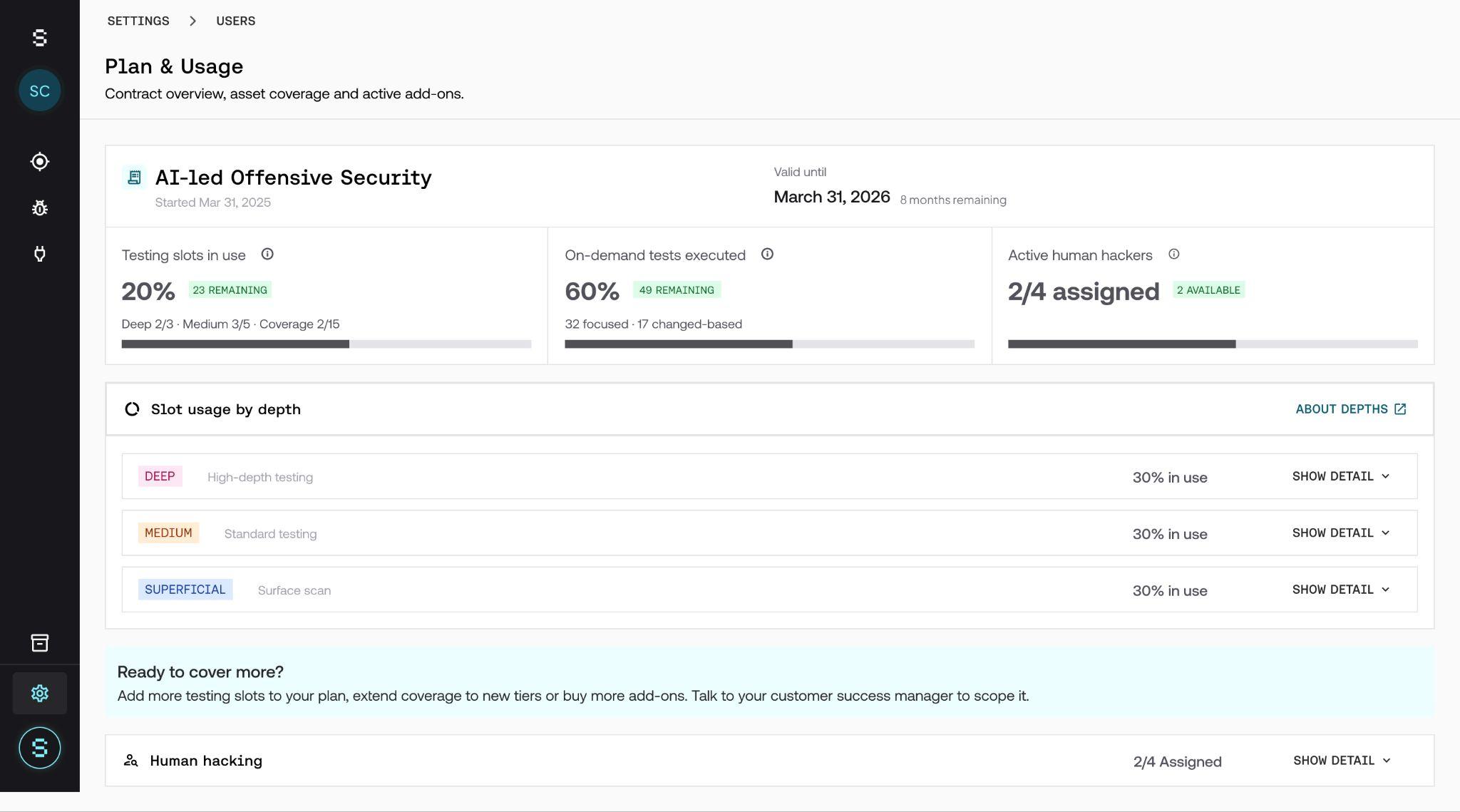
From Settings → Plan & Usage you can see in real time how much testing capacity you have contracted and how much is in use. The screen includes the subtitle "Contract overview, asset coverage and active add-ons" and is organized in three areas: main KPIs, breakdown by depth, and active add-ons.
Main KPIs
At the top you will find three indicators with your active plan, its start date and its expiration date (Valid until):
Testing slots in use — percentage of slots occupied out of the total contracted, with a breakdown by depth below (for example, Deep 2/3 · Medium 3/5) and a badge with the remaining amount (23 REMAINING).
On-demand tests executed — percentage of on-demand tests executed, with the detail of how many were focused and how many change-based, plus a badge with the remaining ones (49 REMAINING).
Active human hackers — number of strikers assigned out of the total contracted (for example, 2/4 assigned) and a badge with the available ones (2 AVAILABLE).
Slot usage by depth
Below you will find the Slot usage by depth section, with an ABOUT DEPTHS link that opens the conceptual article on depth levels. The section shows each level (Deep, Medium, Superficial) with the percentage in use and a SHOW DETAIL button that expands the breakdown by frequency.
Possible states by depth level
0% in use — no active assets at that level. The full contracted capacity is available.
Partially in use — there are active assets but slots remain available to activate more.
100% in use — all slots at that level are occupied. You cannot activate more assets at that level without expanding the plan.
Ready to cover more?
At the bottom of the screen you will find the Ready to cover more? block, with the option to expand your plan, extend coverage to new tiers, or add more add-ons. If you have reached the limit or need more capacity, contact your Customer Success Manager from there.
Frequently asked questions
Can I change the depth or frequency after activating the asset?
No. In the current version, these parameters are defined only when activating the asset and cannot be modified afterwards. If you need to change them, contact your Customer Success Manager to handle the support.
How do I know which depth to choose for each asset?
The general rule is: the higher the business criticality, the greater the depth. A production asset exposed to the internet (such as a public API or a payment system) deserves Deep. Internal tools or staging environments can go with Medium. For broad inventory or low-risk assets, Superficial is enough.
What happens if I run out of available capacity?
If all slots at a depth level are occupied, the platform notifies you when creating an asset with a NO ASSETS LEFT indicator in the Testing depth available panel. To keep adding assets at that level, you need to expand the plan. Contact your Customer Success Manager from the Ready to cover more? block in Plan & Usage.
Is capacity consumed when creating the asset or when activating it?
Capacity is reserved only when you activate the asset, that is, when you click Start testing. You can create the asset and leave it inactive without consuming plan capacity.
Does frequency affect the plan cost?
The pricing structure is based on the depth × frequency combination agreed with the sales team upon contracting. The values available on the platform already reflect what you have contracted. If you need to change the combination, talk to your Customer Success Manager.
What does 'Superficial' mean exactly? Is it less secure?
Superficial does not mean insecure: it means the testing is automated and covers known vulnerabilities, CVEs, and misconfigurations. It is ideal for maintaining a security baseline on low-criticality assets. For critical assets or those with complex business logic, Medium or Deep is always recommended.