What a Focused Threat Emulation is and how to run it
Last updated: October 20, 2026
A Focused Threat Emulation is a Threat Emulation of the Focused type: it runs only once and focuses on a target you define, for example a new endpoint, the login flow, or an admin panel. It validates that target against the assets in scope.
It is designed for small, specific scopes: digging deeper into or validating something very specific. If you need a complete testing exercise across your surface, choose Full security.
You can also launch a Focused execution from a Threat Emulation you already have, without creating a new one.
When to use it
Use a Focused Threat Emulation when you need to validate something specific and limited, without waiting for the next recurring execution. For example:
Validating a new endpoint or functionality.
Digging deeper into a specific flow, such as checkout or password recovery.
Confirming whether a vulnerability or a specific behavior is still present.
When not to use it: a Focused Threat Emulation does not replace complete testing. To cover the entire surface of your assets, either recurrently or in a single execution, use a Threat Emulation of the Full security type. To see the differences, see Full security, Focused, and Change-based: how they differ.
How to run it
You can do it in two ways.
From an existing Threat Emulation
Open the Threat Emulation.
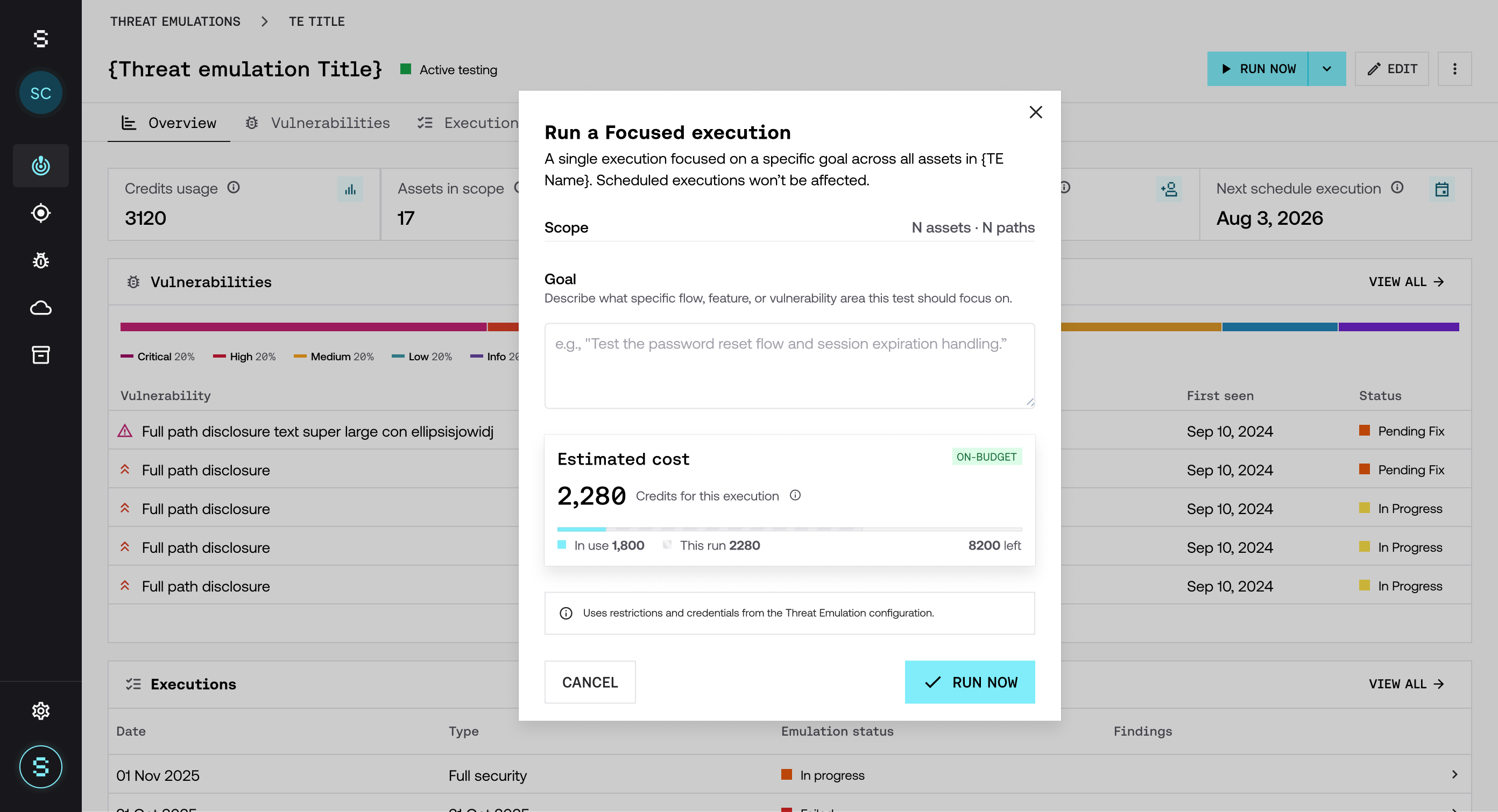
Click the Run now arrow and select Focused.
In Goal, describe the flow, functionality, or vulnerability area the execution should focus on.
Review the estimated cost and click Run now.
The Focused execution uses the assets, restrictions, and credentials from the Threat Emulation's configuration. It does not affect scheduled executions.
By creating a Focused Threat Emulation
Create a Threat Emulation and define its scope. You can also click Start test from an asset's detail view: the platform takes you to the creation flow with that asset already loaded in the scope.
In the Test configuration step, choose Focused.
Complete Goal.
Click Review & confirm and then Confirm and run.
For more detail on the creation flow, see How to create a Threat Emulation.
How to write a good goal
Strike's AI agent interprets the goal to decide where to focus. The clearer and more specific it is, the more focused the results will be. Indicate the flow, endpoint, or area you want to validate and, if applicable, the type of problem you are concerned about.
Example: "Test the password recovery flow and session expiration handling".
Credits
Each Focused execution consumes a fixed amount of credits, regardless of the size of the scope. Before you confirm, the platform shows you the cost of the execution. Credits come from the same plan as the rest of your Threat Emulations.
For more detail, see Credits: what they are and how they are consumed.
Frequently asked questions
Can I use a Focused Threat Emulation to test my entire surface?
It is not recommended. A Focused Threat Emulation validates a specific target. For a complete testing exercise, use a Threat Emulation of the Full security type.
Does a Focused execution interrupt or modify scheduled executions?
No. Scheduled executions continue as usual. A Focused execution is independent.
Can I schedule a Focused Threat Emulation to repeat?
No. It runs only once. If you need recurring validation, use a Threat Emulation of the Full security type.
Can I choose the depth of a Focused Threat Emulation?
No. The execution focuses on validating the goal you defined, without a configurable depth level.
Can I create a Focused Threat Emulation from an asset's detail view?
From the asset you can click Start test, which takes you to the Threat Emulation creation flow with that asset already loaded. There you choose the Focused type.
What happens if the goal is ambiguous?
The agent interprets it as best it can, but the results may not be as focused as you expect. Describe the target as clearly as possible.
Where can I see the results?
In the Executions tab of the Threat Emulation, identified as Focused type. The vulnerabilities it finds appear in the Vulnerabilities tab.